The exciting part of adaptive gaming is easy to picture: the game loads, your controls work, and you get to play with your friends. The shopping cart tends to arrive shortly afterward.
Before checking out, take a closer look at everything between sitting down and joining that game. There may be a launcher, a sign-in screen, a menu, a chat app, and several controls that the gameplay video never showed. Any one of those can become the part that needs another person’s hands.
Start with the game you want to play and work backward. The Adaptive Gaming section is a place to explore possibilities. This process helps you turn a possibility into a setup that fits your actual evening.
Define the Evening You Want
Choose one game, the exact platform, and the mode that matters to you. Playing a single-player campaign, joining a private match, and competing online can involve different demands. Include the people you want to play with and the chat service they actually use.
Then describe the support you are comfortable having. Someone helping with initial mounting may be fine. Needing someone to accept every invitation may be a problem. Make that distinction before testing so a successful demonstration does not quietly rely on assistance you will not have at home.
If you can arrange a demonstration or loan, ask to use this specific game and workflow. Watching somebody else succeed establishes what worked for them.
Start Before the Start Screen
Begin the test from the desktop or console home screen. Open the launcher, select the game, and work through whatever appears. Check whether an unexpected login or update prompt can be handled with your available input. Record any point where the demonstrator reaches for a mouse.
Once inside, visit settings, character selection, inventory, and the screen used to invite friends. Practice backing out of the wrong menu. You will eventually select something by mistake, because that is a feature of being human.
Microsoft’s Xbox accessibility guidance on input treats menus and gameplay as part of input accessibility and explains why remapping alone may leave barriers. It is guidance for developers, not proof that a particular game follows it. Use it to sharpen your questions.
Test Combinations, Not Just Individual Buttons
Make a short list of actions your preferred mode requires. Try movement while aiming, navigation while selecting an item, and any action that requires holding an input. Check what happens when two tasks compete for the same available movement or switch.
Ask which adjustments exist in the game and which depend on controller software. After changing a mapping, check the instructions displayed onscreen and confirm the profile survives closing and reopening the game. Keep a simple record of where each change lives so later troubleshooting does not become an archaeological expedition.
Test a representative activity beyond the tutorial if a demonstration allows it. Write down unresolved requirements rather than assuming a future purchase will solve them. Check the game’s current rules before depending on macros or automation in online play.
Invite Voice Chat to the Test
Being able to play and being able to talk while playing are separate things to check. Join a call, bring the game to the foreground, and try speaking, muting, and leaving the call using your planned controls. Keep private household conversations in mind when choosing an open microphone.
Discord’s voice input guide explains Voice Activity and Push to Talk. It also notes that browser-based Push to Talk works only while the Discord window has focus. That detail matters if your plan assumes you can hold a chat key while another window is active. Test the exact app version and arrangement you intend to use.
Use Your Real Positioning
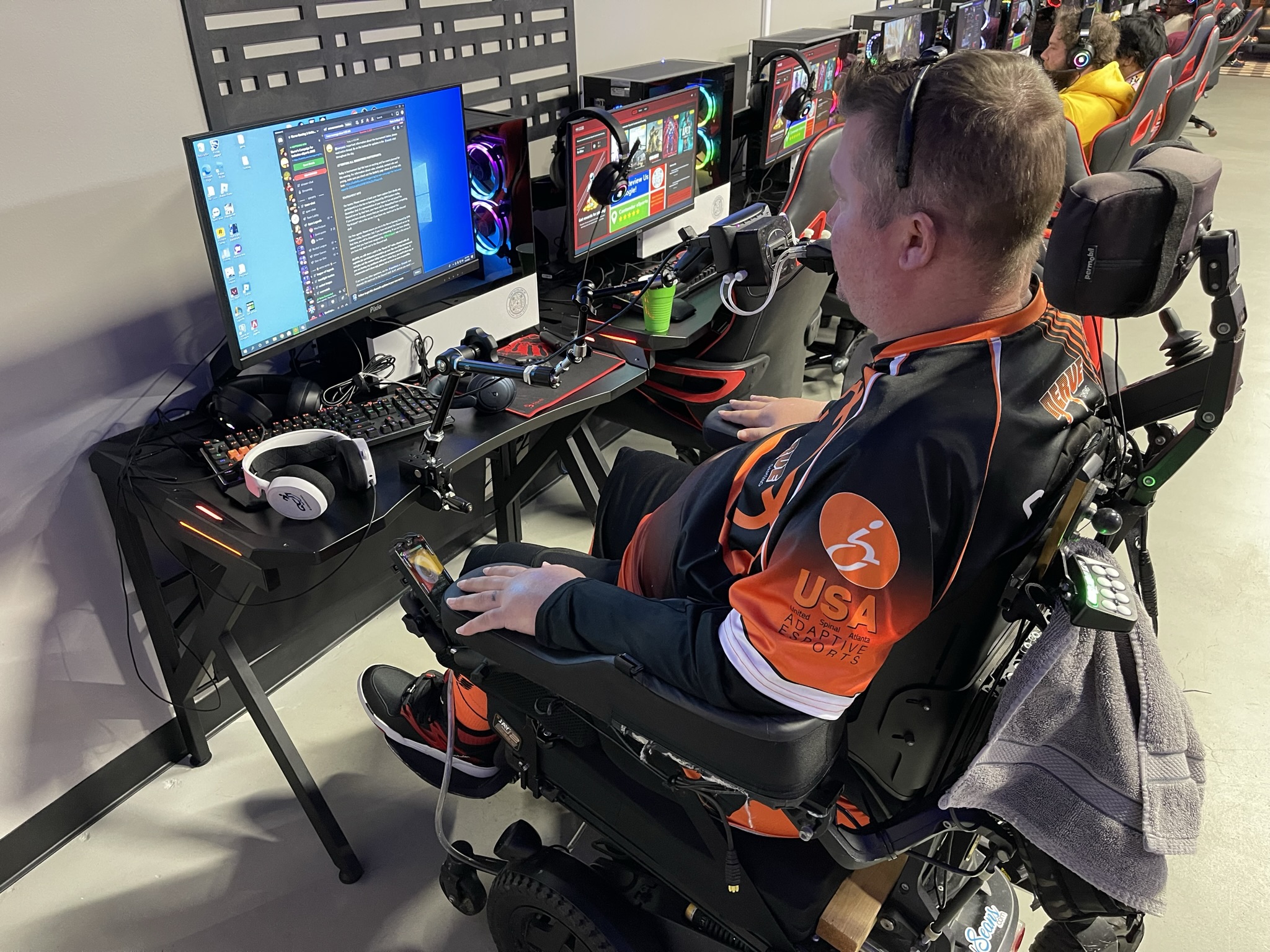
A device within reach for thirty seconds may be awkward through a longer session. Test from your usual seating position, with the supports you normally use. Consider screen visibility, cable routing, microphone placement, and whether an ordinary positioning change affects access.
Notice effort as well as accuracy. Can you repeat the action comfortably? Can you pause or leave when you need a break? If placement creates strain or interferes with your established positioning needs, stop and get appropriate help adjusting it. Gaming should fit around your body and routine.
Ask About Trials and Returns Before Paying
Ask the equipment seller whether a demonstration, loan, or trial is available. Confirm the return deadline, opened-item restrictions, custom-item exclusions, restocking charges, and who pays return shipping. Get answers for the exact hardware and accessories you need.
Software has separate rules. Steam’s refund policy generally covers games bought through its store within two weeks of purchase and with less than two hours of playtime, subject to its terms. Check the current policy and tracked time before testing. Do not assume time spent configuring an open game is excluded.
So Easy a Quadriplegic Can Do It
Keep one testing note with five headings: launch, menus, gameplay, chat, and comfort. Under each, record what worked, what required help, and what remains untested. Bring that note to a seller or assistive technology professional instead of trying to explain everything from memory.
Charlie’s Challenge
Choose one game and find the first unanswered access question before buying another accessory. Ask for a demonstration of that exact step. A little boring preparation can leave considerably more time for the fun part.